How to Add Your LinkedIn QR Code to Apple Wallet
 By Ellie Grant, founder of GoPassy · Updated September 11, 2026
To put your LinkedIn QR code in Apple Wallet, copy your LinkedIn profile link, paste it into a Wallet pass app like GoPassy, and tap Add to Apple Wallet. It takes a couple of minutes, and anyone can scan the QR code with their phone camera to open your profile.
Why put your LinkedIn QR code in Apple Wallet?
LinkedIn’s app has its own QR code, but it lives inside LinkedIn, a few taps deep. A Wallet pass sits next to your boarding passes and tickets, opens in a second, and can be shown even when the venue has no signal. Anyone can scan it with their phone camera, so the person you’re meeting doesn’t need any app.
Step by step
1. Copy your LinkedIn profile link
On a computer, open your LinkedIn profile and copy the address from your browser bar. It looks like linkedin.com/in/your-name. In the LinkedIn app, open your profile and use the share option to copy your profile link.
2. Create a pass in GoPassy
Download GoPassy for free. In the Create Pass tab, enter your name and a short headline, paste your LinkedIn link, then tap Generate QR Code and Save Pass.

3. Add it to Apple Wallet
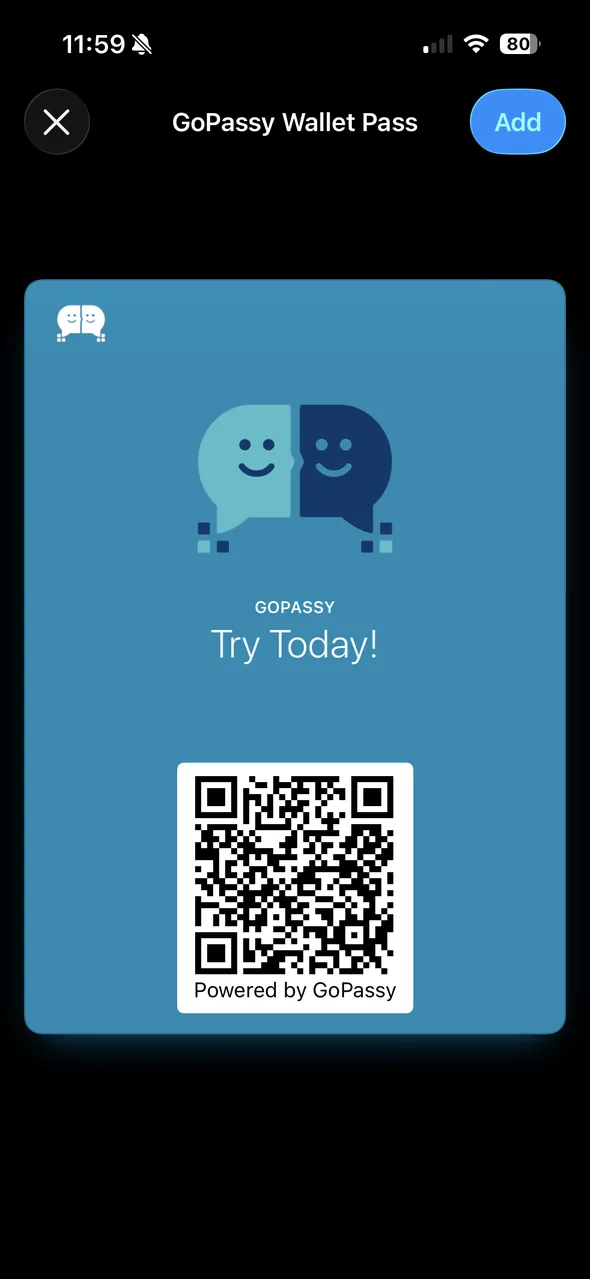
Tap Add to Apple Wallet below the preview, then tap Add on the screen your iPhone shows. The pass now lives in the Wallet app.
4. Open it in a second
Open the Wallet app and tap your pass. On iPhones with Face ID, you can also double-click the side button to open Wallet, as long as Double-Click Side Button is turned on in Settings > Wallet & Apple Pay.
5. Test it once
Ask a friend to point their phone camera at your pass. Your LinkedIn profile should open. Checking once at home saves you a surprise at the event.
Tip: if your LinkedIn link ends in a string of numbers, set a custom one first. On LinkedIn, open your profile and choose Edit public profile & URL. A clean link looks more professional when someone opens it.
What to write on your pass
- Name: the name on your LinkedIn profile, so people find the right person.
- Headline: what you do or want, in a few words, like “Marketing ’27 · Seeking internships” or “Product designer at Acme.”
- Link: your LinkedIn profile link from step 1.
Heading to a career fair? Read the career fair checklist next.
Questions people ask
Is it free to put my LinkedIn QR code in Apple Wallet?
Yes. GoPassy’s free plan includes 3 passes. Pro, at $4.99 a month, adds custom colors and logos, scan notifications and analytics, and NFC sharing.
Does the person scanning need an app?
No. Any phone camera, iPhone or Android, can scan the QR code and open your profile.
Can I change the link later?
Create a new pass with the new link, add it to Wallet, and delete the old one.
Can I show my pass without internet?
Yes. The QR code is stored in the pass itself. The person scanning needs a connection to open your profile.
Does this work on Android?
GoPassy is on iPhone today, and GoPassy for Android, with Google Wallet support, is coming soon. People with Android phones can already scan your pass.
Make your pass in a couple of minutes
GoPassy is free on iPhone. Android is coming soon.
Download for iOS